
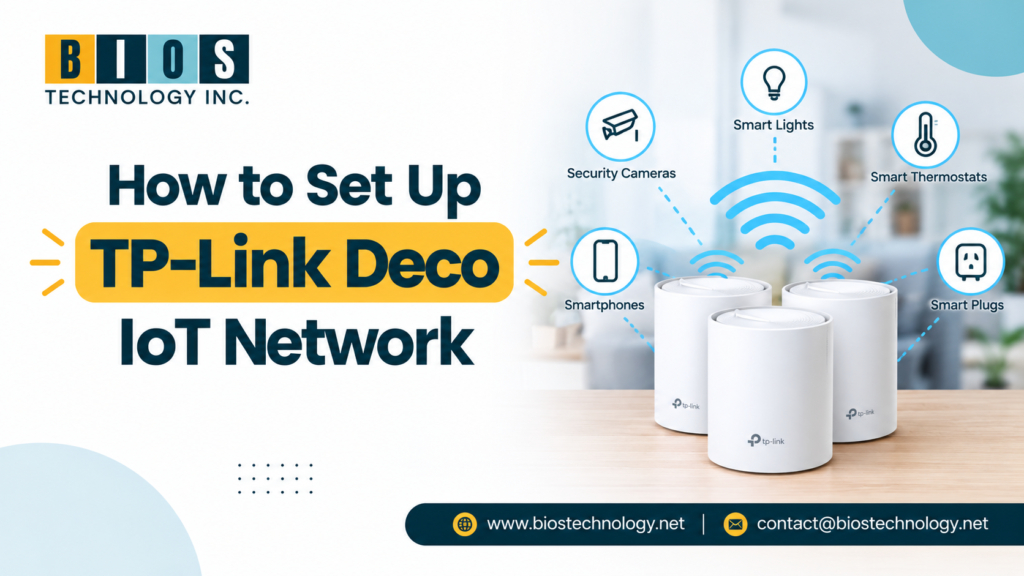
To set up a TP-Link Deco IoT network, open the Deco app, go to More > IoT Network, toggle it on, and set a name and password for the 2.4GHz or 5GHz band. Your smart devices connect to this separate network instead of your main Wi-Fi, which keeps them from slowing down your phones and laptops.
Most people run into this after adding a fourth or fifth smart bulb and noticing their main network start to lag. Below is exactly how to fix that, on both the app and the web dashboard, plus what actually changes once you do it.
What Does an IoT Network Actually Do?
It puts your smart devices — bulbs, plugs, cameras, sensors — on a separate SSID from your phones and computers, while keeping them on the same router.
Two things happen. First, IoT devices are chatty: many “phone home” every few seconds even when idle, and on a crowded network that adds up. Second, IoT firmware is often years behind on security patches. Keeping those devices on their own network means a compromised smart plug can’t easily see or reach your laptop or NAS.
How Do I Set Up the IoT Network in the Deco App?
- Open the Deco app and tap More, then IoT Network.
- Pick the band you want to enable — 2.4GHz is the safer default since most cheap smart-home gear only supports that band. Some tri-band Deco models also offer a 5GHz-2 option.
- Toggle the network on.
- Set a Wi-Fi name (SSID) and password.
- Choose a security type — Encrypted (WPA2/WPA3), Enhanced Open, or No Password. Stick with Encrypted unless you have a specific device that won’t connect otherwise.
- Save, then reconnect your smart devices to the new network name.
That’s it — no reboot required on current Deco firmware.
How Do I Set It Up from the Web Dashboard Instead?
- Visit tplinkwifi.net or deco tplinkcloud and log in with your admin password or TP-Link ID.
- Go to Advanced > Wireless > IoT Network.
- Enable the 2.4GHz and/or 5GHz IoT network.
- Set the SSID, and don’t enable Hide SSID unless you’re prepared to type it manually into every device.
- Pick a security type and password.
- Click Save.
The web dashboard is really only worth using if the app is glitching or you’re setting up several Deco units at once and want the bigger screen.
Which Devices Should Actually Go on the IoT Network?
| Device type | Put it on the IoT network? | Why |
| Smart bulbs, plugs, switches | Yes | Low security priority, high chatter |
| Security cameras, doorbells | Yes | Isolates them if firmware is compromised |
| Robot vacuums | Yes | Frequent background check-ins |
| Smart speakers you cast to (Sonos, some Alexa devices) | Usually no | Casting often breaks across separate SSIDs |
| Laptops, phones, gaming consoles | No | Keep on main network for full speed and access |
The one place this trips people up: if you cast Spotify or YouTube from your phone to a smart speaker, and the speaker is on the IoT network while your phone is on the main one, casting can fail because the two networks can’t always see each other. If that happens, either keep that specific speaker on the main network or check whether your Deco firmware has AP isolation disabled between the two SSIDs.
Does This Slow Down My Main Wi-Fi?
No — it doesn’t split your bandwidth in half or anything like that. You’re creating a second SSID broadcast from the same radios, not adding hardware or dividing your internet plan. The performance gain comes from reducing background chatter and broadcast traffic hitting your main devices, not from bandwidth allocation.
When Should You NOT Bother With an IoT Network?
If you only have two or three smart devices total, the setup adds a step for very little practical benefit — a handful of smart plugs isn’t enough traffic to notice. It’s worth doing once you’re past roughly 8–10 connected smart-home devices, or if any of them are internet-facing (cameras, video doorbells), where the security isolation matters more than the traffic reduction.

