
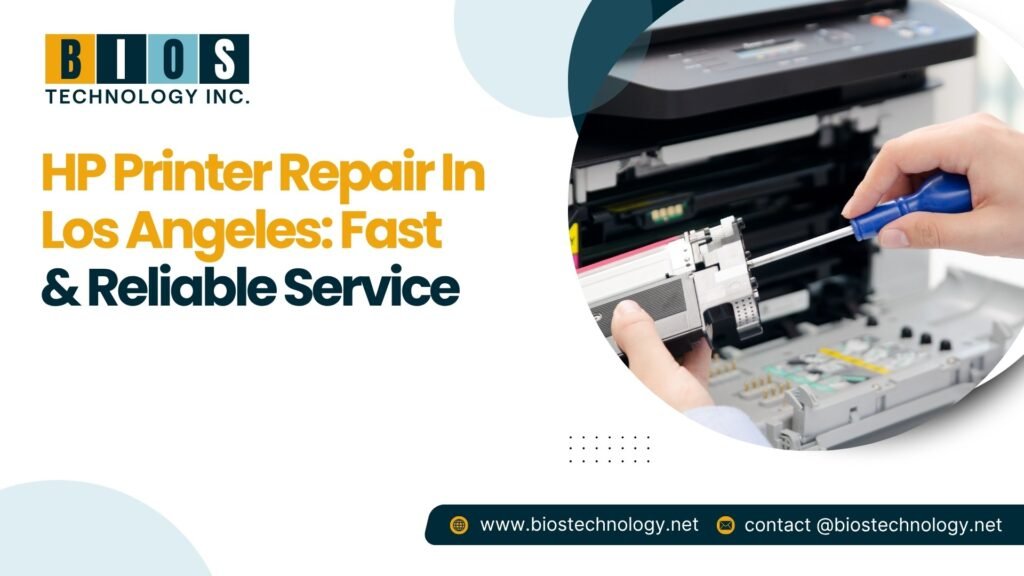
You can get reliable HP printer repair in Los Angeles from a local technician who works on HP hardware daily, quotes a price before starting, and gives a warranty on parts and labor. Most common faults (jams, streaky prints, offline errors, error codes) are fixed in one visit or within a day. Bios Technology offers HP printer repair in Los Angeles, and you can book by phone or online.
Where Can I Find Reliable HP Printer Repair Services in Los Angeles?
Look for a shop with HP-specific experience, upfront pricing, and a written warranty. Those three things separate a proper repair from a guess.
Before you hand over your printer, check that the shop:
- Works on HP models specifically, not just general electronics
- Gives a price or diagnostic fee before any work begins
- Offers a warranty on both parts and labor
- Uses genuine or quality-compatible parts
- Gives a realistic turnaround time in writing
Ask one simple question: “What will you check first on my model?” A technician who knows HP machines will answer specifically, for example, pickup rollers for jams or the cartridge and print head for streaks.
What Are the Common Issues With HP Printers That Repair Shops in Los Angeles Fix?
The most common repairs are paper jams, blocked print heads, connectivity failures, error codes, and power faults. Each has a specific mechanical or software cause.
| Problem | Usual cause | Typical fix |
|---|---|---|
| Frequent paper jams | Worn pickup or separation rollers | Roller replacement |
| Streaky or faded prints | Dried ink, clogged print head, low toner | Head cleaning or cartridge/head replacement |
| Printer shows “offline” | Wi-Fi drop, wrong IP, stuck print queue | Network reset, driver reinstall |
| Won’t print at all | Driver conflict, corrupted firmware | Driver/firmware update |
| Error codes | Sensor, carriage, or board fault | Diagnosis by model |
| Won’t power on | Failed power supply | Power supply replacement |
Why does this happen so often? Dust, old cartridges, and heavy daily use wear parts down. Rubber rollers harden over time and stop gripping paper, which is why jams return after every “fix” that only clears the paper.
A real-world clue: if the printer prints fine from one computer but not another, the printer is usually healthy. The problem is normally the driver or print queue on the second computer, and that can often be fixed remotely.
How Do I Fix a Paper Jam on a Desktop Printer?
Turn the printer off, open the access doors, and pull the jammed paper out slowly in the direction of the paper path. Then check for torn pieces before printing again.
- Turn off and unplug the printer. This protects you and the internal parts.
- Open the input tray, rear door, and front or cartridge access door. Jams often hide in more than one spot.
- Pull the paper out gently, using both hands, in the direction the paper normally travels. Pulling backwards or with force can tear the sheet and leave scraps behind.
- Look inside with a flashlight for small torn pieces. A “phantom jam” (error shows but no paper is visible) is usually a leftover scrap or a dirty sensor.
- Wipe the rollers with a lint-free cloth lightly dampened with water. Let them dry fully.
- Reload fresh, dry paper. Fan the stack, keep it below the fill line, and adjust the guides snugly.
- Print a test page.
When to stop DIY: if the jam returns within a few pages even after cleaning, the rollers are likely worn. That is a mechanical repair, and no software update will fix it. Do not use sharp tools inside the printer.
For error codes or driver issues, HP’s own support site and the free HP Print and Scan Doctor tool for Windows are good places to start.
Should I Repair or Replace My HP Printer?
Repair if the fault is limited to one part and the printer is fairly new. Replace if the repair cost is close to the price of a new unit or parts are hard to find.
Repair usually makes sense when:
- The printer is under about five years old
- Only one component has failed (rollers, print head, power supply)
- You already have supplies for that model
Replace usually makes sense when:
- The model is discontinued and parts are scarce
- The quote approaches the cost of a new printer
- Several different parts are failing
A trustworthy shop will tell you plainly which group your printer falls into, even if that means recommending against repair.
How Long Does HP Printer Repair Take in Los Angeles?
Simple repairs are often done the same day or next day. Jobs needing ordered parts, like a power supply or main board, can take a day or two longer. Ask for the timeline in writing before work starts.
Can HP Printer Problems Be Fixed Remotely?
Software problems can. Driver installs, network setup, firmware updates, and print queue errors are usually solved remotely. Physical faults like worn rollers, damaged print heads, or power failures need an in-person diagnosis.
Can I Schedule an Appointment for HP Printer Repair Near Los Angeles?
Yes. Bios Technology takes appointments for HP printer repair in Los Angeles and nearby areas.
- Call (840) 699-6568 or use the booking form at bios.
- Share your HP model number and a short description or error code.
- Get the diagnostic fee and estimated timeline before you confirm.
- Bring the printer in or arrange on-site or remote help, depending on the fault.
Have your model number ready (it is on the label at the back or underneath). It speeds up diagnosis.
How Can I Prevent Future HP Printer Problems?
Regular cleaning, good paper, and updated software prevent most repeat faults.
- Clean around the paper tray and rollers regularly
- Use good-quality paper stored flat and dry
- Keep drivers and firmware updated
- Print something at least weekly so ink does not dry in the head
- Do not leave cartridges empty for long periods
- Book a service check if the printer runs all day
Related reading: HP Printer Technical Support in Inglewood
Final Word
A faulty printer does not need a guessing game. If your HP printer keeps jamming, prints streaks, or will not connect, a proper diagnosis usually finds the cause fast. Bios Technology provides HP printer repair in Los Angeles with honest diagnostics, upfront pricing, and a focus on getting your printer working again without unnecessary replacements. Call (840) 699-6568 to book.
Add Your Heading Text Here
How Do I Fix an HP Printer That Won't Connect to Wi-Fi?
- Restart the printer, router, and computer.
- Check that the printer’s Wi-Fi light is steady, not blinking.
- Confirm the printer and computer are on the same network (use 2.4 GHz).
- Reset the network settings from the printer’s Wireless or Network menu.
- Reconnect using the HP Smart app or the control panel wizard.
- Print a Wireless Network Test Report to confirm the connection.
How much does HP printer repair typically cost in Los Angeles?
The cost depends on the fault and the model. A software or Wi-Fi fix usually costs less than a hardware repair like new rollers or a power supply. Bios Technology’s diagnostic fee is [$] and most repairs start from [$]. You get the exact quote before any work begins.
Which repair services in Los Angeles cover both HP and other printer brands?
Bios Technology repairs HP printers and liek e.g. Canon, Epson, Brother. Ask any shop for its list of supported brands and models before booking.
Will I lose my printer settings after repair?
Sometimes, especially after firmware or network resets. Note your Wi-Fi details and preferred settings beforehand.
Item #1
Lorem ipsum dolor sit amet, consectetur adipiscing elit. Ut elit tellus, luctus nec ullamcorper mattis, pulvinar dapibus leo.
Item #1
Lorem ipsum dolor sit amet, consectetur adipiscing elit. Ut elit tellus, luctus nec ullamcorper mattis, pulvinar dapibus leo.

