
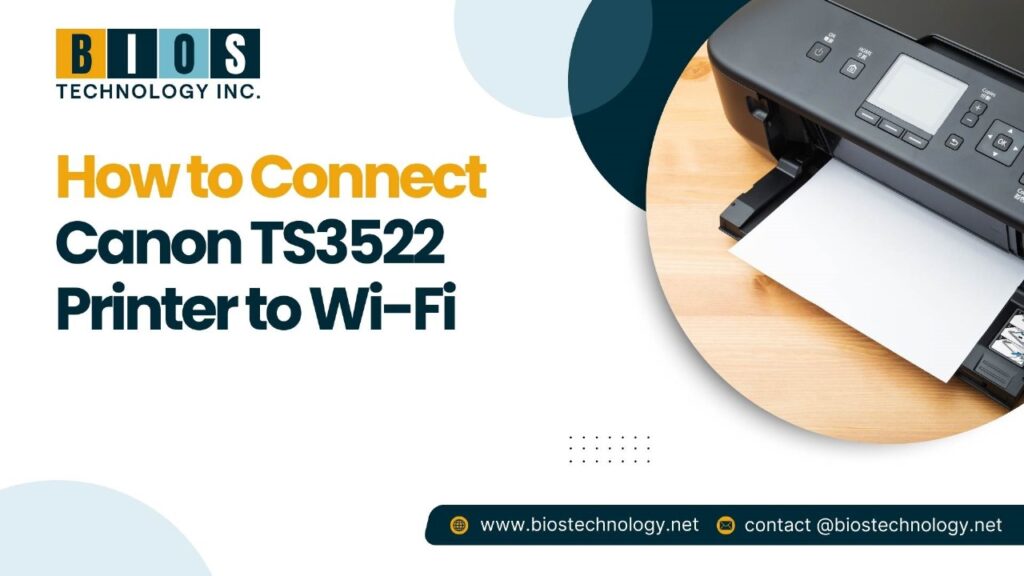
Both at home and in the office, the Canon TS3522 is a dependable and user-friendly printer. You can print documents from various devices without needing cables by connecting your printer to WiFi. If you are just starting with wireless printing, don’t stress! This tutorial will provide clear and concise information on how to connect your Canon TS3522 printer to Wi-Fi.
Reasons for Connecting Canon TS3522 to Wi-Fi
Eliminates the need for messy wires.
- Lets you print from any location in your house or workspace.
- Provides the ability for multiple devices to connect to a single printer.
- Allows for printing via smartphones, tablets, and laptops easily.
- Increases efficiency and speed in terms of printing.
- Instructions on Connecting Your Canon TS3522 Printer to Wi-Fi
Step 1: Turning On Your Printer
To begin, ensure that your Canon TS3522 printer is switched on. After pressing the power button, wait until the printer has fully started. By this time, the power light should be on steadily without blinking.
Step 2: Putting Printer in Wi-Fi Mode
Press and hold the Wireless button located on the printer. Do not let go of the button until the Wi-Fi light has begun to flash.
- Once the button is released, wait until the Wi-Fi light is continuously blinking.
- At this point, the printer is set up for Wi-Fi configuration mode.
Step 3: Download and Install the Canon PRINT Inkjet/SELPHY App (Smartphone Users)
For phone or tablet users, download the Canon PRINT Inkjet/SELPHY app available on the app store for iPhone users or the Google Play Store for Android devices. This app will also assist you in connecting the printer to the Wi-Fi network.
- Launch the Canon PRINT Inkjet/SELPHY app.
- Follow the prompts on the screen to identify the printer, then connect it to the wireless network.
- Type in the name and the password to the wireless network.
Step 4: Connect Using WPS (For Routers that Have WPS Button)
In case your Wi-Fi router is equipped with a WPS button, perform the actions below:
- Press and hold down the Wi-Fi button of the printer until the Wi-Fi signal starts flashing.
- Press the WPS button on your router within 2 minutes.
- Once the Wi-Fi light of the printer shows a solid light, it implies you have connected successfully.
Step 5: Connect Using Computer (Without WPS)
If there is no WPS button on your router, connect the printer using a computer manually.
- Visit the Canon website and fetch the printer drivers for the TS3522 model.
- Open the setup file and adhere to the installation process.
- When you are asked for the connection type, select Wireless Connection.
- Select your Wi-Fi network and type the password.
- Print out a test page to check if the connection works and finish up the configuration.
Common Issues and Solutions
Here are a few solutions if you are having issues connecting your Canon TS3522 printer.
- Verify Signal Strength: Make sure that the Wi-Fi sign is present and that your router is working well.
- Restart All Devices: Power off the printer, the computer, and the router. Then turn them back on and try again.
- Reconnect Printer: Go back to the printer, delete all the current Wi-Fi settings, and initiate the process again.
- Software Check: Ensure the printer is up to date in terms of the firmware and drivers.
- Network Check: Ensure that the Wi-Fi name (SSID) and the password entered are correct.
How To Print Without Cables Wi-Fi-Enabled Printer
Many different devices can be used to print if the printer has an internet connection.
- From any PC: When printing something, the Canon TS3522 printer has to be chosen from the available devices.
- From a mobile phone or tablet: The print jobs are sent through the Canon PRINT Inkjet/SELPHY app.
- From the cloud: The printer can be added to Google Cloud Print or Apple AirPrint for easy cloud printing.
Final Thoughts
In case you need help connecting your Canon TS3522 printer to Wi-Fi, please refer to the instructions provided in this guide. You will be able to set it up and print wirelessly using multiple devices within a matter of minutes.
Should you run into any problems, our team at BIOS Technology is ready to help. Now remember, while connecting your printer is a straightforward task, it could result in unexpected issues. That is why we are here to help you with all of your printer needs.
Contact us (+1 840-699-6568) today and experience premier printer support services like never before!
